Friendly Cyber Cafe Software

Documentation

Administrator
    01. Terminals and Applications
    02. Pricing
    03. Customers
    04. Tickets (Time Codes)
    05. Pre-Paid and Post-Paid Sessions
    06. Shifts
    07. Point-of-Sale
    08. Inventory
    09. Instant Messenger (Chat)
    10. License Key Management
    11. Power Management
    12. Daily Report
    13. Sales Report
    14. Traffic Calculation and URL Log
    15. Point-of-Sale. Receipt
    16. Options


Client
Reports
Web Reports
Web Reports by Email
Printer Watcher
Web Access
NComputing and Terminal Server Support
Wi-Fi Hotspot Support (Wireless Billing)
Valve Steam
Bandwidth Management
Game Console Billing
Database Cleanup
Language Editor
Database Workshop
Server Manager

Wireless Billing

(Step-by-step simple Wi-Fi billing setup guide)

Introduction

Wireless billing allows you to charge the customers of your cafe, club, shop, hotel, etc. when they connect their laptops, PDAs or any other mobile devices to your access point (Wi-Fi hotspot) and use the Internet to surf the web, read emails or chat via an instant messenger.

When a customer first try to surf the web, TrueCafe detects the connection and redirects it to the TrueCafe Wi-Fi billing login page. The customer uses his or her login information (printed e.g. on a ticket you sell, on a receipt of your cafe, etc.) to start a session. When the balance is over, TrueCafe blocks any connection from the corresponding customer terminal.

In order to provide the wireless billing you have to install TrueCafe Server on your Internet gateway computer (Windows OS is only supported). The gateway handles all network connections from your customer terminals.

We recommend the following approach... There are 2 network cards (NICs) in your Internet gateway computer - NIC1 and NIC2. NIC1 is connected to the Internet (WAN) via xDSL/ADSL, Cable, etc. NIC2 is connected to your LAN: Wi-Fi access point, hub, switch, etc.

Use Windows Internet Connection Sharing feature in order to make a bridge between NIC1 and NIC2.

You can use direct Internet connections or proxy 8080 connections as well.

Setup

Setup Internet Connection Sharing between the network cards on your Internet gateway (server) computer. Your WAN-connected network card (NIC1) has IP address usually provided by your Internet Service Provider. Your LAN-connected network card (NIC2) obtains some internal IP address, most often 192.168.0.1.

Read more about how to setup Internet Connection Sharing

Your Wi-Fi access point uses DHCP to assign a dynamic IP to a customer's wireless laptop when it's connected. Access point gateway IP setting is your NIC2 IP address (192.168.0.1).

Please make sure that you have your wi-fi router NAT feature disabled. Otherwise all your wi-fi terminals IP addresses are translated into the single router IP address on the server side.

If you use a router in your LAN, it's gateway has to be your NIC2 IP address as well (192.168.0.1).

You don't have to add your wireless terminals on the TrueCafe server side manually. TrueCafe automatically adds a new terminal when a customer successfully logs in.

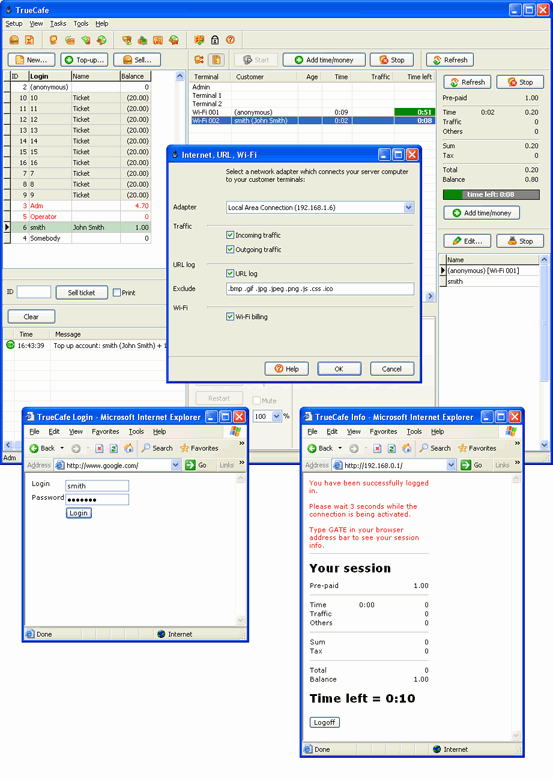
Use TrueCafe Wi-Fi options screen to select your NIC2 adapter and enable the Wi-Fi billing feature (main menu > Tools > Wi-Fi...):

Run!

When a customer comes to your cafe, shop, hotel, etc. and connects to your Wi-Fi access point, it assigns a new dynamic IP address to the customer's wireless laptop.

Then the customer tries to browse the web and since he or she hasn't been yet logged in, TrueCafe Server redirects him/her to the login page.

The customer logs in using a ticket purchased or a member account and then is able to surf the web.

On the TrueCafe server side you see that a new Wi-Fi terminal is added.

In order to view the session info such as the balance or time left in a web browser, the customer types your gateway computer name in the browser address bar (e.g. "gate" on the screenshot below).

The customer can log off from the session info page. You can also stop his session from the server side.

When the customer balance is over, TrueCafe automatically stops the customer session and blocks any connection from his wireless terminal.

Customize login page

If you have some HTML experience, you can customize your Wi-Fi login and session info pages. Edit the login.html and info.html files which are located in the TrueCafe\web folder.

Wi-Fi session timeout

Stop a Wi-Fi session automatically when it's inactive for a few minutes or a customer leaves your shop not logging out.

Wi-Fi white list

Specify wireless billing exceptions: website names or terminal IP/MAC addresses. For example, you can add your employees' laptops addresses here so that they have free access to the Internet. It makes sense to specify your network printers IP addresses as well so that wireless billing doesn't stop printing.

Proxy servers

You can use Wi-Fi billing with a proxy server. The following proxy ports are supported: 8080 and 3128.


TrueCafe. Friendly Internet Cafe Software
Copyright © 1999-2010 TrueCafe, Ltd.
All rights reserved.